STANDARDIZED WORK - e-OSCAR Automated Consumer Dispute Verification (ACDV)


Date/Version: 6/18/2025 v.1

Process Owner: Customer Care

Review Cadence: Annually

Purpose - How to review and respond to Automated Consumer Dispute Verifications (ACDV)
Step (1,2,3..) Process Step (list of the critical process steps) Dialogue (clear and simple descriptions, appropriate level of detail for the task)
1.

e-OSCAR and AZCARES

  1. Log into e-OSCAR
  2. Log into AZCARES
2.

Assigning workload (if necessary) and accessing assigned dispute

  1. In e-OSCAR, click on “Work queues” and a drop-down menu will appear
  2. Click on “Incoming ACDV” and the Work queues list will appear.
  3. Click a Case ID hyperlink to begin working on the case. Doing so will assign it to your “Worklist.”
  4. If instructed to AUTO ASSIGN, scroll down to Manager Reports and click “AUTO ASSIGN.” Doing so, will move all cases to your “Worklist.”
3.

Case Search and Verification of Member

  1. In e-OSCAR, go to the left panel and the “CONSUMER INFORMATION” tab on e-OSCAR to locate and verify the case by using AZCARES
  2. Using the SSN from e-OSCAR, search for the client using the “Search Members” feature in AZCARES
  3. Select members by clicking the blue hyperlink
  4. Use the left navigation and click Related Cases under the Related List menu
  5. Click on the appropriate case hyperlink
  6. Verify Support Payor information
  7. Click on the hyperlink for Support Payor
  8. Verify Member information
  9. Member Details > Member information for SSN, DOB, Names
  10. In e-OSCAR, review Account Number, which is the AZ Case Number. Note: The account number on e-OSCAR will be scrambled but legible to match AZCARES. Match the AZ Case Number to the e-OSCAR account number. Verify Member information.
  11. Related List- Related Cases, click appropriate case number
  12. If you find any information in Task Details or Case Summary that you believe needs the caseworker’s attention, create a B0621 Code for the assigned case worker
  13. Go to Related List > Activity History
  14. Click on the New button
  15. Activity Code: B0621 GENERAL CASE INFORMATION RECEIVED-CASEWORKER NOTIFIED
  16. Comments: Add information the Caseworker will need to review for the case
  17. Click Save
4.

Dispute Codes

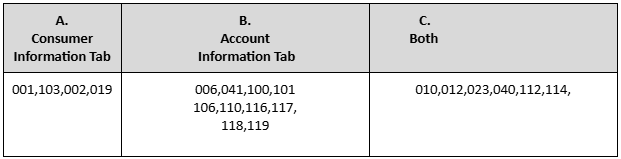
  1. e-OSCAR will ask to update one of the three options below. This stems from the Dispute Code that the Support Payor chooses.
  2. Update the CONSUMER INFORMATION tab only
  3. Update the ACCOUNT INFORMATION tab only
  4. Update both the Consumer and Account Information Tab
  5. Below is a table of common codes and the associated tabs
5.

Images

  1. If any images are included in the dispute, review them before proceeding.
  2. Review IMAGES, this will save the images to your computer (create a folder for these images)
6.

Deletion

  1. If reason A - 1, 2, or 3 match, please continue with this step; if not, proceed to step 7.
  2. Reasons for Deletion: QUICK SEARCH
  3. Intergovernmental Case: Initiating
  4. Go to the case Case Snapshot
  5. Review Intergovernmental Case Status
  6. Case Closed
  7. Go to Case Snapshot
  8. Case Status: Closed
  9. Pending Closure
  10. Go to Case Snapshot
  11. The Pending Closure Date and Pending Closure Reason will be displayed
  12. Research for Deletion-(TO CONFIRM ABOVE)
  13. Select Enforcement > Credit Bureau
  14. Click on Month/Year to sort reporting with the newest on top
  15. Select Reporting ID and view (eyeball)
  16. Credit Bureau Reporting Details
  17. Review Account Status
  18. Verify the Status Line- If populated with “05,” the case is in “Transfer” status. Proceed to request a DELETION record on e-OSCAR.
  19. Go to Related List > Intergovernmental Record
  20. Review Arizona Perspective for Initiating
  21. Click eyeball to review if the case is still open with the responding case
  22. To review transactions, Go to the left panel Related List > Intergovernmental Transactions
  23. Review Legal Processing>Legal Case Assignment for any legal actions regarding closure
  24. Activity History- Any action for upcoming closure
  25. Review any debt work being done — for example pending closure/actions
  26. Financials > Case Hold Instructions
  27. Financials > Case Payment: to review any payments on hold under Payment Process Status
  28. During your research, if you determine that the case should be closed or the pending closure date has expired with no action, submit a B-CODE to the caseworker
  29. Go to Related List > Activity History
  30. Click on the New button
  31. Activity Code: B0621 GENERAL CASE INFORMATION RECEIVED-CASEWORKER NOTIFIED
  32. Comments: Add information the Caseworker will need to review for the case
  33. Click Save
7.

Consumer Information Tab

  1. If the consumer tab is required, e-OSCAR will display drop-down boxes to be updated.
  2. Refer to Table of Common Codes (Step 5)
  3. If the consumer tab is view only, click continue and proceed to the accounts information tab (Step 8)
  4. Use the Verification Indicator drop-down to choose Same, Different, or Unknown
  5. In AZCARES, go to Member Details
  6. First Name
  7. Last Name
  8. Middle Name (If e-OSCAR only provided the first initial, for response, provide the full middle name. If blank, leave blank.)
  9. Social Security Number
  10. Date of Birth
  11. Telephone Number
  12. Street Address (If different, use different)
  13. City
  14. State
  15. Zip Code
  16. Click Continue
  17. If Consumer Only, click Continue and move past the Account Information and Associated Information tabs until you have reached the Review Screen. (Step 9)
8.

Accounts Information Tab

  1. The Caseworker will proceed to update and confirm the following fields in e-OSCAR
  2. Account Status
  3. Go to Enforcement > Credit Bureau
  4. Click on Month/Year to sort reporting with the newest on top
  5. Select Reporting ID and view (eyeball)
  6. Credit Bureau Reporting Details
  7. Review Account Status
  8. Update e-OSCAR if necessary
  9. If the Support Payor is now current, update to “11”
  10. Account Type
  11. Go to Financials > Obligation
  12. Review Obligation Type
  13. If any Spousal Support exists, update the case to Family Support
  14. If only Child Support exists, update the case to Child Support
  15. Special Comment
  16. It should reflect language about “Child Support.” If Support Payor is now current, update to “Select” option
  17. No review is needed in AZCARES
  18. Terms Frequency
  19. Go to Financials > Obligations
  20. Click on Status to sort Active on top
  21. Obligation Type: Select Child Support, view (eyeball)
  22. Review Current Amount Frequency
  23. Current Balance
  24. Go to Financials > Case Balance Summary Support Payor
  25. Select the current Month/Year, view (eyeball)
  26. Note: Total Balance Owed includes the current month and fees
  27. Minus Clearinghouse Fees and $8 Clearinghouse fee from Total Balance Owed
  28. If the balance is zero and the Support Payor still owes the current month, enter $0.00 in e-OSCAR
  29. Amount Past Due
  30. In the same Case Balance Summary Support payor screen, find Total Arrears and Interest
  31. Minus Clearinghouse Fees from Total Arrears and Interest
  32. If the balance is zero, update in e-OSCAR $0.00
  33. Scheduled Monthly Payment
  34. Go to Enforcement>Income Withholding Order
  35. Generate “NEW RECORD”
  36. Use “Current Child Support Amount” and “Child Support Payment on Arrears Amount”
  37. Actual Payment Amount
  38. Go to Financials>Case Payment
  39. Only use the current month or the previous; use the most complete month (USE SRD DATES)
  40. Date Opened
  41. Go to Case > Case Information
  42. Case Open Date
  43. Date of Account Information
  44. This would be the date the response is being processed
  45. Date of Last Payment
  46. Go to Financials > Case Payment
  47. Payment SRD
  48. Update with the most recent SRD figure
  49. FCRA 1st Date of Delinquency
  50. Enforcement > Credit Bureau
  51. Click on Month/Year to sort the list from oldest to newest (click on oldest entry)
  52. Select Reporting ID and view (eyeball)
  53. Credit Bureau Reporting - Details
  54. Enter the data found in the Notice of Intent Sent Date
  55. If the case is current, leave it blank
  56. Original Account History Table
  57. Enforcement > Credit Bureau
  58. Click on Month/Year to sort reporting with the newest on top
  59. Select the Reporting ID and view
  60. Credit Bureau Reporting Details
  61. Review Payment History Profile
  62. This will display 24 numbers or letters
  63. Each one signifies one month
  64. The most recent figure is from the previous month
  65. Update the Payment History if the numbers do not match or if blank
  66. Click Continue
  67. Skip Associated Information until you have reached the Review Screen
9.

Submit on e-OSCAR

  1. Review the 2 panels before submitting the “Response Code.” The 2 panels are “Consumer Information” and “Account Information.”
  2. Click the appropriate “Response Code”
  3. Review the response options and choose the appropriate one
  4. Response Code 12 or 22 is commonly used when any field has been updated
  5. Response Code 01 is commonly used if no fields are updated
  6. For Deletion, the most common code will be “03”
  7. The caseworker will click Submit
  8. If account information exists, a “Clear Account Information” button will appear below the “Response Code” drop-down. Click the button and submit.
  9. Submit will not occur if an error is detected. The review error will be in red.
  10. Once completed, a green box with a checkmark will appear, and the left panel will update with “Resolved- Sending to agency”
10.

Activity History

  1. Go to Activity History
  2. Go to Related List > Activity History
  3. Click on the New button
  4. Activity Code: E8829 E-OSCAR VERIFICATION TO CVD
  5. Comments: See examples below
  6. Click Save
  7. EXAMPLES BELOW.
  8. Experian/A-123456789/Date Received - 2/10/25/Date sent -3/4/25/Due Date -3/5/35/Dispute Code # 112 - Consumer states inaccurate information./Images Provided: (none).Status 93 . (account assigned to collections).Response 12 (USE EOSCAR NARRATION). n3k.
  9. EQUIFAX-101565917/Date Received- 03/06/25/Date sent -03/24/25/Due Date -03/27/25/Dispute Code # 001 - Not mine. Provide or confirm complete ID./Images Provided: Y- UPLOADED, DL, SSN,FN,LN,ADDRESS,PHONE NUMBER, SSN, DOB match/Response # 12(USE EOSCAR NARRATION. ne6

DO NOT PRINT THIS PAGE FOR DISTRIBUTION

CHANGE LOG
Change Number Change Proposed Updated by?

Change Made?

Yes/No

Reason Date Finalized
example Change font on all pages to pink Jane Doe No Pink not within approved standard font scheme 4/13/2018
1 Copied to new template CR Yes new template became available 6/18/2025
2


3


4


5


6


7